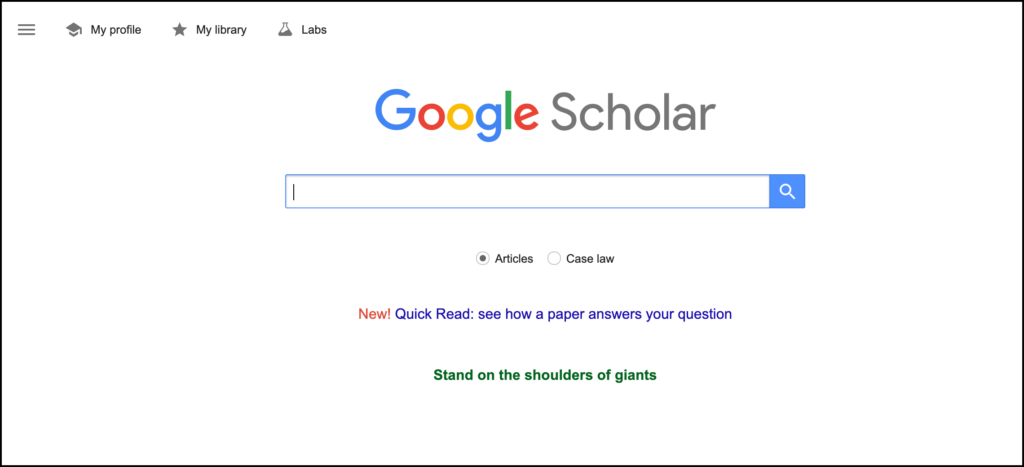
Google Scholar remains one of the easiest places to begin looking for academic literature. It searches across disciplines and brings together journal articles, conference papers, theses, dissertations, books, preprints, technical reports, court opinions, and other scholarly materials. This Google Scholar review explains how its familiar search functions now sit alongside newer AI-assisted features, including Scholar Labs, Quick Read, and the Scholar PDF Reader.
The service is free, broad, and simple enough to use without training. That simplicity can also make a search look more complete than it is. Google Scholar does not publish a master list of everything it indexes, its records are generated automatically, and a high citation count says little about the quality or relevance of an individual study. I find it most useful for discovery and citation chasing, alongside subject databases, a reference manager, and careful reading of the original papers.
What Is Google Scholar?
Google Scholar is Google’s search service for scholarly literature. A result normally includes the title, authors, publication information, a short excerpt, and links that may lead to a publisher page, repository copy, preprint, or accessible PDF. Under the result, researchers can open formatted citations, see later works that cite it, locate related articles, inspect other versions, or save it to a personal Scholar library.
According to Google’s current search help, Scholar adds new papers several times a week. Changes to existing records are slower because Google must recrawl the original source; corrections can take many months. This distinction matters when a recently published paper appears quickly but its title, author list, or other metadata remains incorrect.
Latest Google Scholar Features
Scholar Labs for detailed research questions
Scholar Labs is the largest recent change to the search experience. Introduced in late 2025 and expanded in June 2026, this experimental AI-powered mode accepts a detailed research question instead of relying only on a short keyword string.
Google says Labs identifies the main topics, aspects, and relationships within a question, searches Scholar across those elements, and scans the results to identify papers that address the overall question. Each selected paper receives a short explanation of how it may help. Researchers can then ask follow-up questions to narrow the inquiry or explore a particular detail.
As of September 2026, Google states that Scholar Labs is available to logged-in users and supports questions in all languages. Its June update made searches faster, scanned more papers, and increased daily search availability. The updated experience was initially released in English, with other languages expected to follow.
Labs is useful for orientation, especially when a question includes several connected concepts. Its descriptions still need to be checked against abstracts and full texts. They can help you decide what to read; they cannot establish what the evidence says.
Quick Read
Google introduced Quick Read in August 2026. When a paper discusses a search question in depth, a Quick Read link may appear in ordinary Scholar results or Scholar Labs.
The presentation is organized into three parts:
- Answers summarizes what the paper says about the query and provides supporting details.
- Approach describes relevant methods and techniques.
- Considerations identifies caveats that may affect interpretation.
Quick Read is currently available to logged-in users for English-language articles, and it appears only for papers they can access. The structure is useful when deciding whether a paper deserves close reading. I would still open the full article before quoting a claim, describing a method, or including the study in a literature review. A generated overview cannot carry the same evidential weight as the paper itself.
Scholar PDF Reader
The Google Scholar PDF Reader is a Chrome extension that changes how PDFs are displayed in the browser. It can preview references without leaving the paper, link figure and table mentions to their locations, copy formatted citations, save papers, and provide light, dark, and night reading modes.
Its AI Outline presents section-level bullets that can be used to preview a paper and jump to relevant passages. Researchers can also highlight text and add comments. Those annotations are saved to the user’s Google Scholar Library and can be accessed on other devices when signed in.
The permissions deserve attention. Chrome asks the extension to read and change data on websites because it reformats PDFs opened in the browser. Google says the extension changes only how PDFs are presented. Anyone working with confidential drafts, embargoed manuscripts, or sensitive institutional material should still check their organization’s browser-extension and data-handling policies.
Google Scholar Review: How to Search More Effectively
A basic topic search is useful for exploration, but a few simple techniques produce more manageable results. Put a known title inside quotation marks. Use the author: operator, as in author:"John Hattie", and add a topic when the name is common. Advanced Search, found in the side menu, can restrict terms to the title, author, or publication fields and limit results by date.
Scholar normally sorts by relevance. Selecting “Since Year” keeps that ranking while limiting the time period; “Sort by date” places the newest additions first. I generally use the first option to find strong recent matches and the second to monitor what has just appeared.
One query is rarely enough. Research on AI feedback in writing, for example, may be described through automated feedback, generative feedback, revision support, or writing assistance. Run several searches, record the wording, and compare what each retrieves.
10 Practical Ways Researchers Can Use Google Scholar
1. Learn the language of an unfamiliar field
Examine the vocabulary used in titles and abstracts. Recurring constructs, population labels, and methods can improve later searches in ERIC, PsycINFO, Scopus, Web of Science, or another disciplinary database.
2. Follow a paper backward through its references
Inspect a paper’s reference list to locate foundational theories, earlier instruments, and prior studies. This backward search helps reveal where an argument came from.
3. Follow a paper forward with “Cited by”
The Cited by link can uncover replications, critiques, adaptations, and applications. Use “Search within citing articles” to narrow a large set. Remember that older articles have had more time to accumulate citations, and a citing paper may criticize the work.
4. Find neighbouring work with “Related articles”
Related articles can reveal papers that share references, terminology, or topical patterns when the original search was too narrow.
For a more visual exploration of citation relationships, researchers may also want my guides to Litmaps and ResearchRabbit.
5. Locate accessible full text
Look for PDF or HTML links beside a result. If the main link reaches a paywall, open All versions to check repositories, preprints, or author-posted copies. Before citing an accessible copy, check whether it is a preprint, accepted manuscript, or the version of record.
6. Create alerts for a topic, author, or paper
Select the envelope icon after a search to create an email alert. You can monitor a topic, follow an author, or open a paper’s Cited by results and watch for new citations. Keep the query focused; a broad alert quickly becomes background noise.
7. Build and maintain a researcher profile
A public profile gathers an author’s publications and reports citations, h-index, and i10-index. Automated suggestions can attach the wrong paper or merge records incorrectly, so authors should check additions. These metrics describe visibility in Scholar; they are not a complete measure of research quality.
8. Save papers to My Library
The Save button adds a record to a private Scholar library, where labels can organize papers by project or reading status. This works for a modest list. For a large project, Zotero is better suited to attachments, notes, collections, duplicate control, and word-processor citations.
9. Export citations
The Cite button provides formatted citations and exports to BibTeX, EndNote, RefMan, and RefWorks. Compare every record with the published paper. Automated metadata can contain capitalization errors, missing authors, incorrect dates, or the wrong version.
10. Explore publication metrics cautiously
Google Scholar Metrics lists publication-level h5-index and h5-median values. The current release covers articles published from 2020 through 2024, using citations indexed by July 2025. It can identify visible journals, but smaller publications are often excluded and journal metrics cannot establish the quality of an individual paper.
Google Scholar Compared with Other Research Tools
| Tool | Best use | Main strength | Important limitation |
|---|---|---|---|
| Google Scholar | Broad scholarly discovery and citation chasing | Wide multidisciplinary reach, Cited by links, versions, profiles, and alerts | Coverage is not fully transparent and records need verification |
| Scholar Labs | Searching with a detailed research question | Breaks a complex question into connected aspects and explains paper relevance | AI-generated descriptions can oversimplify or misread papers |
| Semantic Scholar | AI-assisted paper discovery | Useful recommendations, summaries, author pages, and research feeds | Coverage and AI features vary by paper and discipline |
| Litmaps | Citation mapping and monitoring | Visualizes citation relationships and follows a topic over time | Does not evaluate study findings |
| Elicit | Screening and structured evidence extraction | Builds comparable research tables across papers | A semantic search does not replace a documented database strategy |
| Consensus | Quick research-grounded answers | Makes an evidence question easier to explore | Generated synthesis must be checked against the papers |
Researchers deciding between AI-assisted tools can also consult my Elicit versus Consensus comparison.
Google Scholar Limitations
Google Scholar is broad, but Google does not guarantee uninterrupted coverage of a publisher or repository. Some fields, document types, languages, and regional outlets are easier to find than others. Results are capped at 1,000 per query, bulk record access is unavailable, the ranking system is opaque, and duplicate or incorrect records still occur.
For a systematic or scoping review, Google Scholar is best documented as one search source or as a supplementary citation-searching method. Use databases appropriate to the discipline, construct reproducible search strings, record dates and filters, remove duplicates, and screen against explicit criteria. Scholar Labs and Quick Read may help with orientation, but neither provides a reproducible substitute for reading and evaluating the studies.
This guide is also available for download as PDF.
Final Assessment
Google Scholar remains a strong starting point for research because it combines broad discovery, citation chaining, access links, alerts, author profiles, and simple citation export in one free service. Scholar Labs, Quick Read, and the PDF Reader now extend that workflow into question-based discovery and assisted reading.
I would use the AI features to decide where to look and what to read next. Claims, methods, limitations, and citations still need to be checked in the original paper. For a substantial project, Google Scholar works best beside subject databases, citation-mapping tools, and a dedicated reference manager. It helps researchers find the literature. Judging and synthesizing that literature remains the researcher’s work.