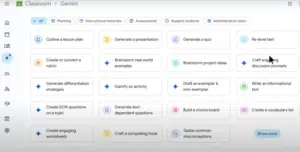
Gemini for Education is Google’s education-focused version of its generative AI assistant. Teachers can use it to plan lessons, adapt classroom materials, create assessments, explore ideas, summarize documents, and complete administrative tasks. Students can use it to ask questions, practise concepts, receive writing feedback, and prepare for assessments.
These capabilities can be useful, but they remain forms of support. Gemini can produce a lesson draft, suggest an explanation, or generate practice questions. The teacher still needs to check the information, judge whether the material fits the learners, and decide how it should be used. Students also need to read, think, verify, and produce work that demonstrates their own learning.
One source of confusion is that Google currently has several related education products and plans. Gemini for Education is available at no cost to qualifying institutions, while Google AI Pro for Education is a paid add-on with higher limits and deeper integration across Google Workspace. This guide explains that difference and looks at the functions that matter most to teachers.
What Is Gemini for Education?
Gemini for Education is a version of Google Gemini provided through Google Workspace for Education. It is available as a standalone AI assistant at gemini.google.com and is included in Google Workspace for Education editions.
An institution can also sign up for Google for Education Fundamentals and enable the Gemini app even if it uses another productivity suite as its primary platform. Access, however, is managed by the institution. An administrator can turn Gemini on or off for particular users or organizational units.
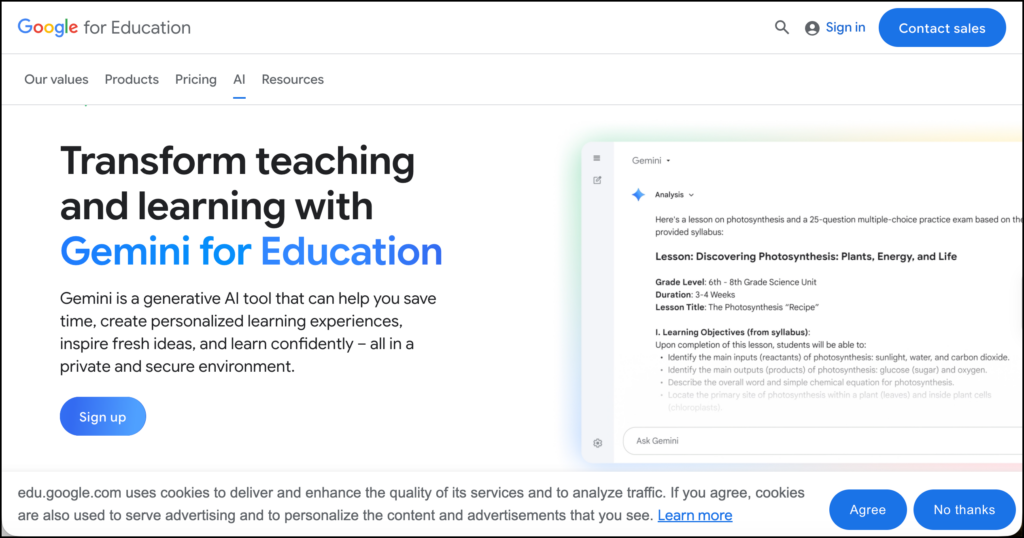
The interface works much like other conversational AI tools. You enter a question, instruction, document, image, or other supported input, and Gemini generates a response. You can continue the conversation, ask for revisions, add requirements, or request a different format.
The education version adds institutional administration and data protections. Google states that data used in Gemini for Education is not reviewed by people or used to train its AI models. The service is covered by the Google Workspace for Education Terms of Service.
Students under 18 receive a separate experience with additional guardrails and AI literacy resources. Google currently describes Gemini for Education and Gemini Notebook as available in more than 40 languages for users of all ages, although individual functions may have their own age, language, or regional restrictions.
Gemini for Education vs Google AI Pro for Education
The distinction between the free service and the paid add-on is important.
| Area | Gemini for Education | Google AI Pro for Education |
|---|---|---|
| Cost | No cost for qualifying institutions | Paid institutional add-on |
| Access | Standalone Gemini app | Gemini plus deeper integration across Workspace |
| AI models | Limited access to premium models | Expanded access to premium models |
| Deep Research | Limited access | Expanded limits |
| Gems | Create and use custom Gems | Included |
| Gemini Canvas | Included | Included |
| Audio Overviews | Included with limits | Expanded limits |
| Gemini Live | Included | Included |
| Gemini Notebook | Standard education access | Higher limits and premium features |
| Workspace integration | Can connect with Workspace apps when enabled | Full access in Gmail, Docs, Drive, Meet, Slides, Forms, Sheets, Chat, and other supported apps |
| Administration | Admin controls and reporting | Admin controls, reporting, and additional security functions |
On the Canadian version of Google’s page, Google AI Pro for Education is listed at C$26 per user per month with a one-year commitment or C$31.20 per user when billed monthly. Google also lists a 25% discount for eligible Education Plus customers purchasing 50–999 licences with a one-year commitment. Institutions should verify current pricing and eligibility with Google or an authorized reseller before purchasing.
For many teachers, the no-cost version provides enough functionality to begin exploring Gemini. The paid add-on becomes more relevant when an institution wants higher usage limits and Gemini embedded throughout its existing Google Workspace environment.
Gemini for Education Features Teachers Can Use
Gemini for Education covers a wide range of tasks. The features below are the ones I think have the clearest relevance to day-to-day teaching.
Lesson Planning and Instructional Design
Teachers can use Gemini to create a preliminary lesson structure from a learning objective, curriculum expectation, topic, or source document.
For example, a teacher might ask:
Develop a 50-minute Grade 8 science lesson introducing the difference between weather and climate. Include an opening question, teacher modelling, a collaborative activity, a formative check, and an exit ticket. Label any curriculum assumptions you make.
The quality of the result depends heavily on the information provided. A request that includes the grade, subject, learning objective, available time, student context, and required materials will usually produce a more usable draft.
Gemini can also help teachers revise an existing plan. You could ask it to identify where students are expected to explain, apply, compare, or create. This is often more useful than asking the tool to generate an entire lesson without any starting material.
A generated lesson should still be checked for factual accuracy, realistic timing, curriculum alignment, accessibility, and the amount of thinking required from students.
Differentiating Classroom Materials
Google lists re-levelling texts and assignments among the teaching uses of Gemini. Teachers can ask it to clarify instructions, explain unfamiliar vocabulary, break a task into stages, or create additional scaffolding.
The learning objective needs to remain visible throughout this process. Simplifying the language of an assignment may improve access. Removing the intellectual demand of the task changes what students are being asked to learn.
A more productive prompt would be:
Review this assignment for possible language and reading barriers. Suggest supports that preserve the original learning objective. Explain what each adaptation changes and what must remain challenging.
Gemini can also generate extensions for students who are ready to go further. These might include applying a concept to a new situation, comparing competing explanations, or examining an exception to a general rule.
Creating Assessments and Practice Materials
Gemini can generate quizzes, exams, assignments, rubrics, answer keys, and practice questions. It can work from a topic or use examples supplied by the teacher.
This can provide a useful starting point, particularly when a teacher needs several versions of a practice activity. However, generating questions is easier than generating good evidence of learning.
Teachers should check whether each item:
- Matches the intended learning outcome
- Uses content that students had an opportunity to learn
- Measures the intended knowledge or skill
- Contains one defensible answer when required
- Avoids unnecessary language barriers
- Provides an appropriate level of challenge
Answer keys require checking as well. An AI-generated key can contain incorrect answers, overlook alternative interpretations, or give an explanation that sounds convincing without being accurate.
Deep Research
Gemini’s Deep Research feature searches and analyzes information before generating a longer report with citations. Teachers might use it to investigate a new instructional topic, prepare for professional development, compare educational approaches, or gather background information for a unit.
It can also help a teacher develop an initial map of an unfamiliar subject. The citations provide places to begin checking the information.
Deep Research should not be confused with a systematic academic literature search. It does not replace searching appropriate scholarly databases, documenting search decisions, evaluating study quality, or reading the papers on which a conclusion depends.
The no-cost education service includes limited access to Deep Research. Google AI Pro for Education provides expanded limits.
Gemini Gems
Gems are customized versions of Gemini that follow saved instructions. A teacher can create a Gem for a recurring task such as lesson planning, rubric development, classroom discussion design, or family communication.
A Gem can contain permanent instructions about the grade level, subject, preferred structure, teaching context, and rules it should follow. Teachers may also add relevant files to its Knowledge section.
For instance, a rubric-development Gem could be instructed to request the learning objective and assignment instructions before creating any criteria. A lesson-planning Gem could be told never to invent curriculum standards and to identify every assumption it makes.
Gems are particularly helpful when a teacher repeatedly gives Gemini the same contextual instructions. They provide consistency, although their outputs still need review.
Gemini Canvas
Gemini Canvas is an interactive workspace for developing longer or more structured outputs. Google lists quizzes, study guides, visual timelines, code, scripts, and interactive prototypes among the materials that can be created in Canvas.
For a teacher, Canvas can be useful when the work requires several rounds of development. You might begin with a lesson outline, expand one activity, revise its reading level, and then turn part of it into a student-facing resource.
Canvas can also create simple interactive materials and previews. The teacher should test these carefully before assigning them. Generated code or interactive activities can behave differently than expected, and a functional activity is not necessarily an instructionally useful one.
Audio Overviews
Gemini can turn a file or Deep Research report into a podcast-style Audio Overview. This provides another way to review information and may be helpful for teachers preparing for a topic or students revisiting material.
An Audio Overview could accompany a reading, for example, by introducing the main ideas before students begin or helping them review afterward.
It should not automatically replace the original material. An AI-generated audio conversation selects, condenses, and interprets information. Students who hear only the overview may miss the evidence, qualifications, examples, and structure of the source.
Google also cautions that AI-generated audio can contain inaccuracies. Teachers should listen to an overview before sharing it with students.
Gemini Live
Gemini Live supports spoken conversations with real-time responses. Depending on the device and available features, users can also share a camera or screen with Gemini.
Teachers could use Live to brainstorm aloud, rehearse a presentation, simplify an explanation, or talk through the structure of an upcoming lesson. Students might use it to practise an oral presentation or request another explanation of a difficult concept.
The conversational format is convenient, but it can make unsupported responses feel more authoritative. Spoken information still needs to be checked, especially when it involves facts, citations, formulas, or interpretations of a source.
Gemini Notebook
Gemini Notebook, formerly called NotebookLM, is a separate but closely related research and learning tool. Its main advantage is source grounding. Users create a notebook, add selected materials, and ask questions based on those sources.
Teachers can place course readings, lecture slides, curriculum documents, webpages, and videos in a notebook. Gemini Notebook can then generate study guides, reports, quizzes, flashcards, mind maps, Audio Overviews, Video Overviews, slide decks, data tables, and infographics.
This makes it better suited than an ordinary Gemini conversation for working closely with a defined collection of materials. Its inline citations also help users trace an answer back to a passage in the source.
Google AI Pro for Education provides five times higher Gemini Notebook limits along with premium features, according to the current Canadian product page.
Gemini Across Google Workspace
The paid Google AI Pro for Education add-on brings Gemini directly into supported Workspace applications. This is one of the main reasons an institution might consider the paid plan.
Depending on the application and available feature, educators can use Gemini to:
- Draft and revise material in Google Docs
- Summarize email threads and draft replies in Gmail
- Create or revise content in Google Slides
- Analyze and organize information in Google Sheets
- Work with files stored in Google Drive
- Create materials in Google Forms
- Generate notes and action items from Google Meet
- Work with Gemini inside Google Chat
The advantage here is largely about workflow. A teacher can work with a document, message, presentation, or spreadsheet without continually transferring content between applications.
Institutional access does not make every use appropriate. Schools still need policies governing confidential information, student records, assessment data, copyrighted materials, and human review.
Practical Ways Teachers Can Start
The number of features can make it tempting to try everything at once. A more manageable approach is to begin with one recurring task.
Good starting points include:
- Revising the instructions for an existing assignment
- Producing practice questions from teacher-provided material
- Generating several explanations of the same concept
- Creating an initial lesson outline
- Turning a curriculum document into a reusable Gem knowledge source
- Building a Gemini Notebook from a small, carefully selected course pack
- Rehearsing a presentation through Gemini Live
- Summarizing a non-confidential administrative document
Compare the AI-assisted process with the way you normally complete the task. Consider whether Gemini saves meaningful time, whether the result requires extensive correction, and whether it improves the work or merely produces more material.
Limitations Teachers Should Keep in Mind
Gemini can generate inaccurate facts, fabricated references, weak questions, and activities that are poorly matched to a class. A polished response is still a draft.
There are also educational limits. If Gemini completes too much of a task, students may lose the opportunity to practise the very skill being assessed. This is particularly relevant in writing, problem-solving, research, and interpretation.
Teachers should ask:
- What is the learner supposed to demonstrate?
- Which parts of the work can Gemini support?
- Which decisions must remain with the learner?
- How will the learner’s own understanding become visible?
- How will AI-generated claims and citations be checked?
Privacy requires equal care. Google states that Gemini for Education data is not human-reviewed or used to train AI models, and the service is covered under its education terms. Teachers must still follow their institution’s approved practices and avoid entering sensitive student or research information unless that use has been authorized.
Is Gemini for Education Worth Using?
Gemini for Education gives qualifying institutions a practical way to provide educators and students with an administratively managed AI assistant at no additional cost. The free version includes a substantial collection of functions, including limited Deep Research, Gems, Canvas, Audio Overviews, Gemini Live, and connections to Google Workspace when enabled.
For individual teachers, its usefulness will depend less on how many features it has and more on whether it supports a real instructional or administrative need. Lesson planning, material adaptation, assessment drafting, professional research, and document analysis are reasonable places to begin.
Google AI Pro for Education becomes more attractive when an institution relies heavily on Google Workspace and needs higher limits, Gemini throughout its Workspace applications, and expanded Gemini Notebook access.
In either version, Gemini should remain a scaffold. It can accelerate the preparation of a lesson or help a student approach difficult material, but the quality of the final work still depends on human reading, verification, interpretation, and judgment.