If you do much of your academic writing in Google Docs, Paperpile is a reference manager worth looking at. It connects collecting papers, organizing a library, reading PDFs, and inserting citations into a browser-based workflow. In this Paperpile review, I explain its main features, current plan differences, and a few ways we can use it in research.
What interests me most is the connection between the library and the writing process. A paper becomes easier to use when its reference details, full text, and reading notes are available when we need them.
What is Paperpile?
Paperpile is a reference manager for collecting, organizing, reading, and citing research materials. It has a web application, browser extension, mobile apps for iOS and Android, and citation integrations for Google Docs and Microsoft Word. These components let you build a library and use its sources across different stages of a project.
It also supports BibTeX workflows for researchers who write with LaTeX. Paperpile is a subscription product with a 30-day trial, so the features you need should guide your choice of plan.
Paperpile review: Features that matter for researchers
Saving references while browsing
Paperpile’s browser extension helps you save papers and other sources as you find them online. Its import options include PDFs, BibTeX and RIS files, lists of DOIs, and pasted references. This is useful when your research materials come from database searches, publisher websites, existing reference libraries, and colleagues.
The practical habit I would suggest is to save a source when you find it, then check its details before moving on. Confirm the authors, title, year, and publication information. Collecting references quickly is helpful, but accurate records are what make the library reliable later.
Finding available PDFs
Paperpile attempts to find and download PDFs for saved references. When an automatic download is unsuccessful, it provides other routes for locating the document. It also supports institutional access through university or library connections, with off-campus proxy access listed among the Expert plan features. Access still depends on whether the article is openly available or covered by your subscriptions.
For researchers, this can reduce some of the back-and-forth between a reference record and the website hosting the paper. I would still make sure the attached PDF is the version I intend to read and cite.
Organizing a growing library
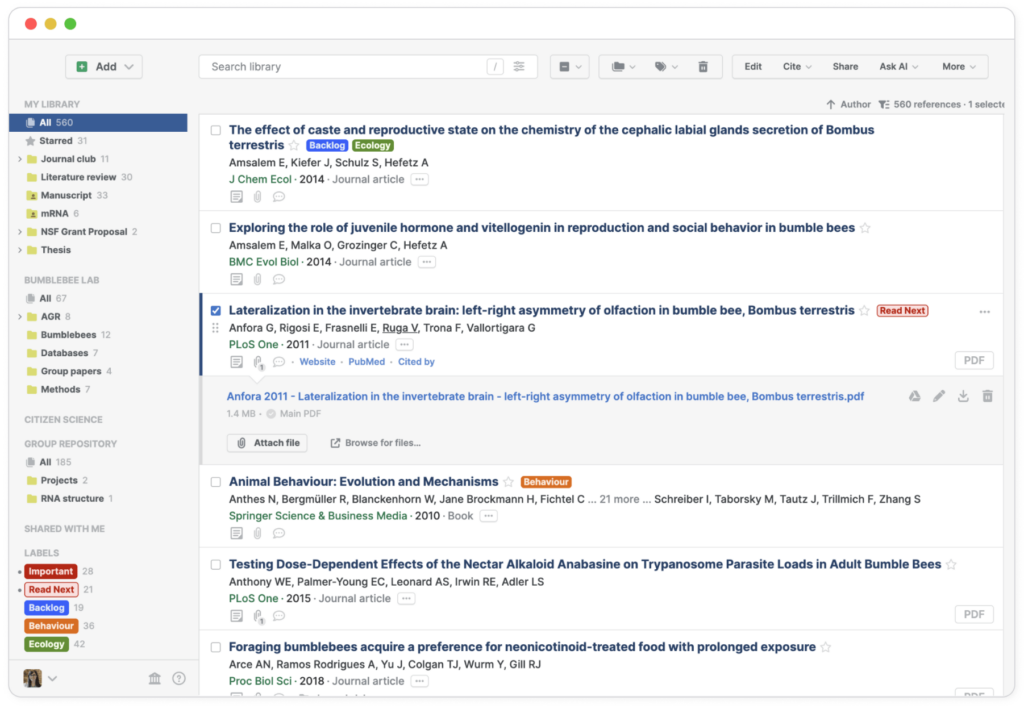
Paperpile uses folders and labels to organize references. It supports a range of source types, including journal articles, books, websites, preprints, presentations, and software. Its library tools also include duplicate detection and merging, automatic file naming, and options for filling in missing reference details. These features help maintain a library as it grows across projects.
I would use folders for projects and labels for information that cuts across them. For example, a paper could belong to an article folder and carry labels such as “theoretical framework” or “read next.”
Full-text searching across PDFs is available on the Expert plan. That can be useful when you remember a phrase or concept from a paper but cannot recall its title.
Reading and annotating papers
Paperpile’s PDF reader supports highlighting, underlining, notes attached to highlights, and standalone sticky notes. You can also annotate figures and tables and use different colours to organize your reading. These annotation functions are included in Expert rather than the basic Regular plan. The plan distinction matters if reading and note-taking are central to your workflow.
For literature reviews, I would pair highlights with short explanations. Record why a passage matters, how it relates to your research question, or what needs closer examination. A highlighted sentence alone may tell you very little when you return to it months later.
Paperpile also supports exporting notes as Markdown and storing annotations in a standard PDF format. This gives you options for carrying your notes into other reading or note-taking tools.
Inserting citations in Google Docs and Word
Paperpile provides citation tools for both Google Docs and Microsoft Word. It can format in-text citations, footnotes, and bibliographies, with common styles such as APA, MLA, and Chicago alongside journal-specific styles. Custom citation styles are included in Expert. This makes it relevant to researchers who draft collaboratively in Google Docs or prepare manuscripts in Word.
The useful part is being able to cite as you write. You can keep references connected to the developing manuscript and change the required style without manually rewriting each entry.
I would still check the finished bibliography. Citation software formats the records it holds; incomplete or incorrect information can carry through to the final document.
Sharing research materials
Paperpile supports sharing papers, while Expert includes shared folders, shared libraries, and collaborative PDF annotations. These options could support a co-authored article, a graduate reading group, or a team collecting literature around a common question.
A shared library works best when the team agrees on a simple routine. Decide what belongs in it, how sources will be labelled, and what contributors should record after reading. The software provides the shared space; the group still needs to make it useful.
Paperpile’s Ask AI integration
Paperpile now offers an Ask AI integration, introduced in public beta. It sends selected PDFs and a prompt to a supported external AI assistant, using your existing account and subscription with that service. This connects the research library to AI tools you may already use.
The integration includes research prompts and links intended to help you return from AI responses to passages in the source PDFs. You can also disable Ask AI in the settings.
I would use this for bounded tasks: asking about a paper’s method, locating a relevant passage, or comparing how a small set of studies defines a concept. Then read the supporting sections yourself. The quality of the response depends on the assistant, the documents, and the question.
Because PDFs are sent to another service, check its data-handling rules before using unpublished or restricted materials.
Ways researchers can use Paperpile
• Build a project library as you search. Save references immediately and organize them around your research questions.
• Prepare an annotated literature review. Add notes on each paper’s purpose, method, findings, and relevance to your argument.
• Write collaboratively in Google Docs. Use the citation integration while co-authors develop the manuscript.
• Maintain a shared reading collection. Use Expert’s shared libraries for a research team or graduate reading group.
• Explore papers with AI support. Send selected PDFs to an approved assistant, then verify its answers against the original text.
• Keep references portable. Export records in formats such as BibTeX or RIS when moving between research tools.
Pricing and access
Paperpile currently offers Regular, Expert, and Enterprise/Institutional plans. Regular covers collecting and organizing references, storing and reading PDFs, and basic citation integrations. Expert adds functions including full-text PDF search, annotations, shared libraries, supplementary files, and advanced integrations. I would choose based on those differences, especially if you expect to annotate papers or collaborate.
The pricing page states that all plans are billed annually and offers a 50% academic discount for eligible users. A 30-day trial is available. Check the current price and eligibility before subscribing, since the displayed monthly rate represents an annual commitment.
Browser support also deserves a check. At the time of this review, the website states that initial signup requires Chrome and describes Safari and Firefox support as beta. Features and access details were checked in September 2026.
My assessment
Paperpile is worth considering if your research involves frequent web browsing, Google Docs writing, and a library of PDFs you want to organize consistently. Its Word and BibTeX support also give it uses beyond a Google Docs workflow.
I would use the trial to complete a small, real task: import several papers, check their records, organize them, annotate one, and cite them in a document. That will tell you more about its fit than a feature list. Pay particular attention to whether the functions you rely on require Expert before committing to a subscription.