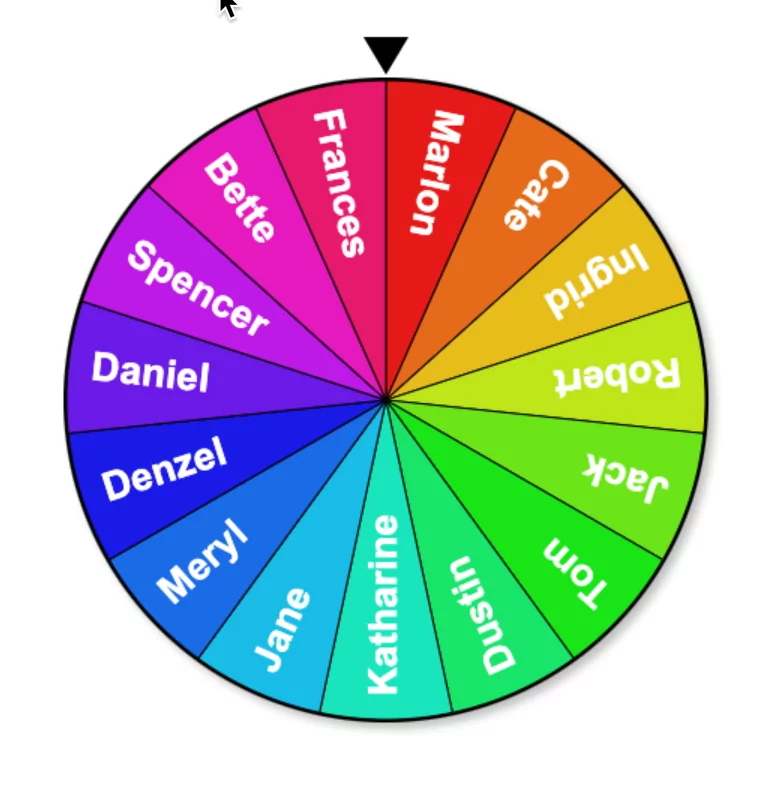
Flippity Spinner, officially called the Flippity Random Name Picker, is a browser-based tool for randomly selecting names, terms, questions, or other items. Teachers can use it to call on students, create groups, decide presentation order, review vocabulary, and add an element of chance to classroom activities.
Although it is often described simply as a spinner, the current version does much more. It can select individual names, create randomized lineups, divide a class into groups or teams, generate seating charts, arrange speed-networking rotations, produce printable rosters, and organize gift exchanges.
Flippity is free to use, although some parts of the website are supported by advertising. There is no Flippity app to install. The tool works in modern web browsers on computers, tablets, and phones, provided JavaScript is enabled. These details are confirmed in the current Flippity FAQ.
What Can Flippity Spinner Do?
The current Random Name Picker includes several selection and organization modes:
- Spinner: Spin a wheel to choose a random name or term.
- Single Name: Select names individually without repeating them until everyone has been chosen.
- Lineup: Place all names in a random order.
- Groups: Divide participants into groups of different sizes.
- Teams: Arrange participants into as many as 15 teams.
- Jigsaw Groups: Reorganize existing groups for jigsaw-style cooperative activities.
- Speed Networking: Create changing pairings or small-group arrangements.
- Seating Chart: Generate a randomized classroom seating plan.
- Roster: Produce a printable class list.
- Gift Exchange: Randomly assign names for a gift exchange.
Flippity supports groups of up to 15 students and as many as 15 teams. This makes the tool useful for more than calling on individual students; it can support several routine classroom organization tasks from the same list of names.
Ways to Use Flippity Spinner in the Classroom
1. Randomly Select Students
Use the spinner to select students for questions, discussions, demonstrations, or classroom responsibilities. Random selection can distribute participation more widely rather than relying on the same students to volunteer each time.
It is important to understand how the spinner works: every spin is independent, so a student who has already been selected can be chosen again. If you want each student to have one turn before any names repeat, use the Single Name or Lineup mode instead.
2. Create Student Groups and Teams
Flippity can randomly divide a class into pairs, groups, or teams. This can save time when organizing:
- Collaborative projects
- Lab activities
- Peer-review sessions
- Discussion groups
- Classroom games
- Learning stations
You can choose the number or size of groups based on the activity. The group generator can create up to 15 groups or 15 teams.
Random grouping should still be used with teacher judgment. There may be times when you need to adjust a group based on student needs, relationships, accessibility, or the purpose of the activity.
3. Organize Jigsaw Learning Activities
The Jigsaw option is especially useful for cooperative learning. Students can begin in one set of groups and later be reorganized so that members share their learning with students from other groups.
For example, different groups might study separate sections of a text. Flippity can then rearrange them into new groups containing representatives from each original group.
4. Add Variety to Games and Reviews
You can enter questions, vocabulary words, historical figures, scientific concepts, mathematical formulas, or discussion topics instead of student names.
Spin the wheel and ask students to:
- Define the selected word
- Explain the concept
- Use the term in a sentence
- Solve a related problem
- Identify its significance
- Provide an example
- Connect it to an earlier lesson
This makes the tool useful for lesson reviews, retrieval practice, warm-up activities, and exit discussions.
5. Decide Presentation or Activity Order
Use the Lineup feature to determine the order of presentations, performances, conferences, or classroom activities. Because the entire order is generated at once, students can see when their turn is coming.
The same feature can be used to arrange a list of topics, questions, learning stations, or project tasks in a random sequence.
6. Generate Seating Charts
The current Random Name Picker includes a seating-chart generator. Teachers can use it to create a quick randomized arrangement and then make adjustments where necessary.
This may be helpful when changing seating arrangements regularly, organizing a special activity, or giving students opportunities to work near different classmates.
7. Support Speed Networking and Peer Discussion
Flippity can generate speed-networking arrangements that rotate students through a series of partners. In the classroom, this feature can support:
- Peer interviews
- Think-pair-share variations
- Language practice
- Research exchanges
- Book discussions
- Review sessions
Teachers can provide a new prompt for each round and use the generated arrangement to change partners.
8. Manage Classroom Responsibilities
The spinner can assign routine tasks such as distributing materials, collecting papers, leading a line, recording group ideas, or helping with classroom organization.
For recurring responsibilities, the Single Name or Lineup options are preferable to the spinner when everyone needs a turn before the selection cycle begins again.
9. Use It Outside the Classroom
The Flippity Random Name Picker can also be used for social gatherings and small events. You can use it to organize teams, choose activities, establish an order, arrange a gift exchange, or make other random selections.

How to Use Flippity Spinner
Flippity provides two ways to create a random name picker: the Quick & Easy method and a Google Sheets template.
Option 1: Create a Quick Flippity Spinner
This is the easiest option when you need a spinner immediately.
- Visit the updated Flippity Random Name Picker page.
- Replace the sample entries with your own names, terms, or questions.
- Separate entries with commas or line breaks.
- Add an optional title.
- Select Generate.
- Bookmark the generated page if you want to use it again.
You can also open More and select Quick Edit to make temporary changes to the list without creating it again.
If you need to include long questions or passages, Flippity recommends using its separate Randomizer Wheel because the text on the spinner automatically shrinks to fit the available space.
Option 2: Use the Google Sheets Template
The spreadsheet option is useful when you have multiple classes or several lists you expect to reuse.
- Open the Random Name Picker instructions.
- Make a copy of the Google Sheets template. You will need to sign in to a Google account.
- Edit the column headings in row 2.
- Enter your names or terms beneath each heading.
- Do not edit cells with a blue background.
- Select the generated Flippity link at the top of the relevant column.
- Bookmark the resulting Random Name Picker page.
The current template allows you to use up to 12 columns. You could, for example, maintain a separate column for each class, vocabulary unit, discussion set, or activity.
An important recent change is that you no longer need to publish the Google spreadsheet to the web. The template passes the data through the links generated in the first row. This makes the setup shorter than the process used by earlier versions of Flippity.
For permanent changes, edit the spreadsheet and reopen its generated link. For temporary changes during a lesson, use More > Quick Edit from the Random Name Picker page.
Does Flippity Save Student Work?
Flippity does not require students to create accounts, but it also does not save their individual progress. The tool is not collaborative in real time: if several students open the same link, each receives a separate version of the activity.
There is also no teacher dashboard for remotely monitoring what students are doing. For the Random Name Picker, this is rarely a problem because the tool is usually displayed and controlled by the teacher.
As a general privacy precaution, consider using first names, initials, student numbers, or pseudonyms rather than entering unnecessary identifying information into an online tool. Teachers should also follow their school or district’s policies regarding student data and third-party websites.
Is Flippity Spinner Free?
Yes. According to Flippity, its tools are free to use, although some features and pages are supported by advertisements. The website does not offer premium teacher or student accounts.
Flippity works directly in a browser and does not have a dedicated mobile app. A page can be bookmarked or added as a home-screen shortcut for quicker access.
Final Thoughts
Flippity Spinner remains a useful classroom random name picker, but its current features extend well beyond spinning a wheel. Teachers can use the same tool to choose students, create groups, generate teams, establish an order, build seating charts, and arrange jigsaw or speed-networking activities.
The two setup options also make it flexible. The Quick & Easy generator works well for an immediate activity, while the Google Sheets template is better for teachers managing several reusable lists.
For additional options, explore this collection of the best random name pickers for teachers.