Saving information is easy. Returning to it months later and understanding why it mattered takes more work. In this Obsidian review, I look at how the app can help us connect reading notes, research questions, and teaching ideas across projects.
What interests me most is its approach to linked notes. A note about one paper can connect to a concept, a classroom activity, or an argument you are developing. Those connections give your reading somewhere to go.
What is Obsidian?
Obsidian is a note-taking and knowledge-management application that stores notes as local Markdown files. Markdown is plain text with simple formatting for headings, lists, links, and other elements. A vault is the folder containing your notes and related files.
The app is available for Windows, macOS, Linux, iOS, and Android. You can use the main application offline and without an account. Its text-based file format makes your written notes accessible outside Obsidian, although some specialised features depend on the app.
For educators and researchers, I see it as a place to develop and connect ideas. I would keep formal reference management in a dedicated citation manager and use Obsidian for the interpretation that grows around those sources.
Obsidian review: Features that matter
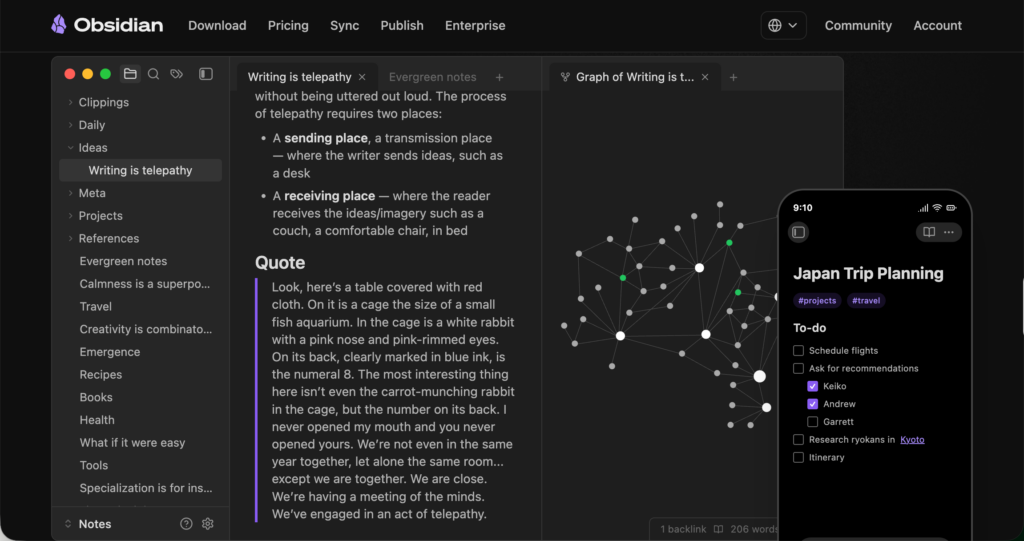
Linking notes and following backlinks
You can connect notes by typing a title inside double square brackets, such as [[Feedback literacy]]. Links can also point to a particular heading or passage.
Backlinks show which other notes refer to the note you have open. Obsidian also identifies unlinked mentions of its name, giving you opportunities to connect material you previously wrote.
For a literature review, you might link several paper notes to a shared concept. Opening that concept note would then provide a route back to the studies discussing it.
I would add a sentence explaining each important connection. “This study uses a different definition of engagement” gives you more to work with than a link alone.
Viewing connections through Graph view
Graph view represents notes as circles and links as lines. The local graph focuses on the notes connected to your current note, with controls for expanding the surrounding connections.
This can help you inspect how you have organised your thinking. However, the graph represents connections within your vault. It does not automatically map scholarly citations or establish the importance of a paper.
For research, I would begin with the local graph around a specific question. That is likely to be more manageable than examining every note at once.
Related: Notion AI Full Review
Planning visually with Canvas
Canvas provides a flexible space for arranging notes, text cards, attachments, and webpages. You can group cards and connect them with labelled lines. Canvases use the open JSON Canvas file format.
A researcher could arrange competing explanations beside the studies supporting them. A teacher could place a curriculum outcome alongside possible activities, resources, and assessment ideas.
The useful part is making relationships explicit. A connection labelled “challenges this assumption” communicates something that spatial proximity alone cannot.
Organising notes with Properties and Bases
Properties add structured information to notes, including dates, tags, numbers, links, and checkboxes. You could record a paper’s year, research method, topic, and reading status.
Bases creates database-like views from your notes and their properties. It lets you view, edit, sort, and filter that information, with layouts including tables and cards. The underlying data remains in your local files.
For example, a reading collection could show only notes marked “read,” then sort them by publication year. Consistent properties are essential: different labels for the same method will make filtering less useful.
Reusing templates and finding material
The Templates core plugin inserts predefined text into notes. A research-reading template could contain sections for the question, method, findings, limitations, and relevance to your project.
Search supports phrases, tags, properties, and other filters. Its built-in content search covers notes and canvases; attaching a PDF does not make its full text searchable through that feature.
I would keep templates brief enough to complete consistently. A few thoughtful observations are more useful than a detailed form you leave mostly empty.
/
Collecting webpages with Web Clipper
Obsidian’s free Web Clipper lets you highlight webpages and save content to your vault. It supports major browsers, including Chrome, Firefox, Safari, and Edge, and offers templates for shaping what you capture.
For teachers, this could support a collection of articles, activity ideas, and professional readings. Add your own note explaining why you saved something, and retain its source information so you can return to the original.
Does Obsidian include AI?
Obsidian’s main note-taking workflow works without AI. Its Web Clipper includes an optional Interpreter feature that uses a configured language model to extract, summarise, explain, translate, or transform webpage information.
The Interpreter documentation explains that processing can use an external provider or a model running locally. External requests go directly to the selected provider, whose terms and privacy policy apply. Some configurations require an API key and may incur provider charges.
I would keep AI-generated material clearly distinguishable from my own reading notes. Check summaries against the original, especially when a qualification or methodological detail affects your interpretation.
Ways educators and researchers can use Obsidian
| Purpose | Suggested workflow |
|---|---|
| Literature-review notes | Create a note for each paper and connect it to relevant concepts. |
| Developing an argument | Gather supporting and conflicting evidence in a question-centred note. |
| Course planning | Link outcomes, readings, activities, and teaching reflections. |
| Professional learning | Record what you tried, what happened, and what you would change. |
| Student research | Ask students to explain connections between sources in their own words. |
| Visual planning | Use Canvas to organise ideas before drafting an article or lesson. |
These are suggested uses. Their value depends on the quality of the notes and the decisions made around them.
Syncing, sharing, and publishing
Obsidian Sync is an optional paid service for synchronising files across devices. It supports end-to-end encryption, version history, and shared vaults. Publish is a separate service for putting selected notes on the web.
Shared vaults require every collaborator to have an active Sync subscription. They currently support up to 20 collaborators, without fine-grained permissions or live co-editing of the same file.
For a research team, agree on who edits which files and when. For a course resource site, review selected material carefully before publishing.
Is Obsidian free?
The main application is free, including commercial use. The official pricing page currently lists:
| Service | Annual billing | Monthly billing |
|---|---|---|
| Sync, starting price | US$4 per user/month | US$5 per user/month |
| Publish | US$8 per site/month | US$10 per site/month |
Eligible students, faculty members, and nonprofit employees receive a 40% discount on Sync and Publish. These details were checked in October 2026; consult the pricing page for current terms and plan limits.
What to keep in mind
Customisation can become a distraction. I would begin with notes, links, a simple template, and a small set of properties.
Community plugins add capabilities, but they also introduce third-party code. Obsidian’s documentation states that plugins inherit the app’s access and can access files or connect to the internet. Restricted Mode disables community plugins. This matters when working with confidential research material.
Local storage also makes a separate backup routine important. Keep copies of your vault and attachments somewhere you can recover them.
My assessment
Obsidian is worth considering when you want your reading and teaching notes to remain connected across projects. Its flexibility suits people willing to build a small, consistent routine.
I would start with one real project: a handful of paper notes, one research-question note, and meaningful links between them. Use that collection before adding more features. You will learn quickly whether the approach helps you retrieve ideas and develop your writing.