
Learning to search online involves more than typing a question into a search box. Children need to choose useful keywords, identify relevant results, and decide whether a page deserves their trust. The challenge for teachers is giving students room to practise these skills while reducing their exposure to inappropriate material.
Kiddle offers a starting point. It combines filtered web search with a visual interface and gives priority to results selected for younger readers. In this Kiddle review, I explain its main features, suggest classroom uses, and discuss the safety and privacy considerations worth checking before introducing it to students.
What Is Kiddle?
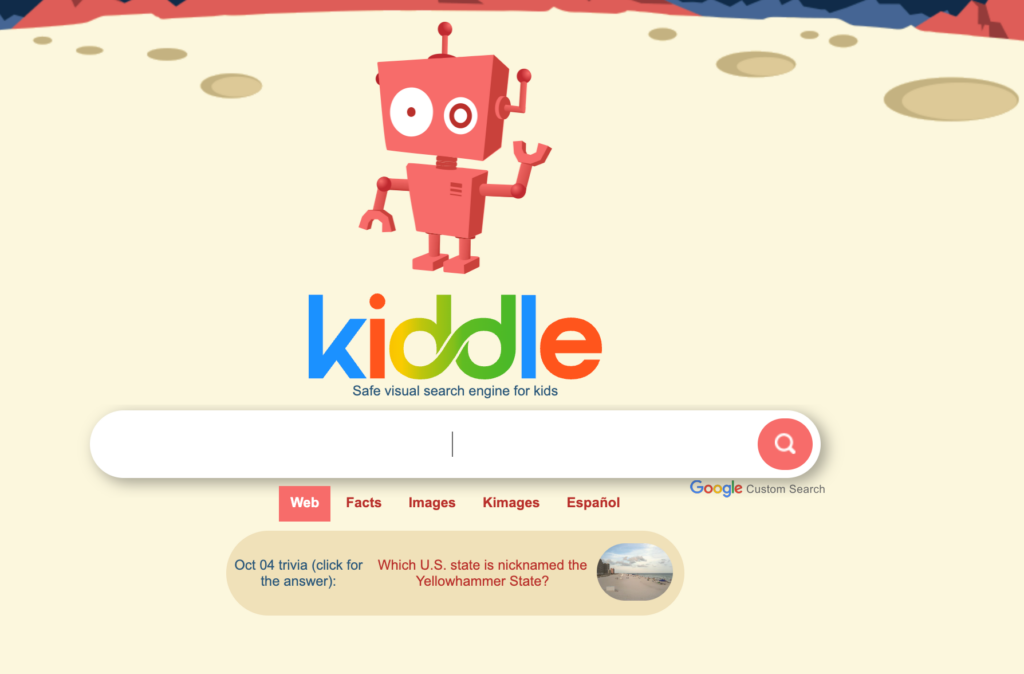
Kiddle is a visual search engine designed for children. Its interface includes web search, image search, and access to Kpedia, an encyclopedia with articles written for younger readers. Large thumbnails and readable text help children browse the results.
Kiddle uses Google search technology and SafeSearch filtering, but it is not affiliated with Google. Its approach combines automated filtering with editorial selection of some results. That distinction matters: Kiddle does not manually approve every page that can appear in a search.
I would use it as a place to introduce web-search skills, especially when students are gathering background information. It still requires teacher guidance and source evaluation.
Kiddle Review: Main Features
Search Results Organized for Younger Readers
Kiddle describes a typical arrangement for its web results:
| Result position | What Kiddle says usually appears |
|---|---|
| First three results | Pages written for children and checked by editors |
| Results four to seven | Accessible pages from trusted sites, checked by editors |
| Results eight onward | More advanced pages filtered through Google SafeSearch |
This arrangement gives students a chance to encounter readable material early in a search. However, these positions describe Kiddle’s typical approach, rather than a guarantee about every query.
For classroom use, I would check the results for the actual topic students will investigate. A search engine designed for children can still return a page that is too difficult, too broad, or unsuitable for a particular lesson.
A Visual, Readable Interface
Kiddle displays large thumbnails beside search results and uses large Arial text. These design choices help children distinguish between results and make the page easier to scan.
The thumbnails also provide a teaching opportunity. Ask students what an image suggests about a result, then compare that impression with the title and description. An appealing picture can attract attention without telling us whether the source answers our question.
Kpedia for Background Reading
The Facts section leads to Kpedia, Kiddle’s encyclopedia. Students can browse topics including science, history, geography, biographies, and technology. It offers another route into a subject when children need an introductory explanation before searching more widely.
For example, students investigating an animal could begin by identifying its habitat, diet, and scientific name. Those details can then become keywords for a more focused search.
I would encourage students to record where their information came from and check important claims against another suitable source.
Two Routes to Image Search
Kiddle includes an Images tab and a separate Kimages option. Kimages searches images from the Kiddle encyclopedia. This distinction is useful when students are looking for pictures connected to an encyclopedia topic.
Teachers should also introduce image attribution. Kpedia states that its content is available under an Attribution-ShareAlike licence unless otherwise indicated. Students should check the credit and licence attached to the particular image they want to use. Images found elsewhere through web search may have different permissions.
Filtering and Reporting Options
Kiddle blocks certain inappropriate search terms and provides forms for reporting unsuitable websites or keywords. These are reporting mechanisms for Kiddle to review, rather than a dashboard where teachers can create their own classroom filtering rules.
The reporting options are useful, but I would still preview searches and agree on what students should do if an unexpected result appears.
How Teachers Can Use Kiddle
Here are a few ways I would bring Kiddle into classroom research:
- Teach students to refine a question. Begin with a broad topic such as “volcanoes,” then develop a focused query such as “how volcanoes form.” Discuss which results better match the question.
- Practise reading search results. Ask students to examine the title, description, and website before opening a page. Have them explain why they chose one result.
- Compare two explanations. Students can read a Kpedia entry and another suitable source, identifying shared information, additional details, and claims that need checking.
- Keep a simple research log. For each useful page, students record its title, website, one relevant fact, and one question they still have.
- Discuss image selection and attribution. Ask students to choose an image that explains something about their topic, then identify its source and reuse conditions.
- Model a search together. Project a search and talk through your decisions: changing a keyword, rejecting an irrelevant result, or checking who published a page.
For students who benefit from browsing a set of subject resources before conducting an open search, my Ducksters review offers another option to consider.
Safety and Privacy: What to Check
Kiddle’s own guidance makes an important point: its filtering offers less protection once children leave the search results and visit other websites. It recommends adult supervision, agreed browsing rules, and teaching children to protect personal information.
I would therefore introduce Kiddle alongside clear routines: which sites students may visit, when they should ask for help, and how to respond to something unexpected. Filtered results still need checking for accuracy and relevance.
Privacy also deserves attention. Kiddle requires no registration, and its policy says that it does not collect personally identifiable information and deletes server logs after 24 hours. However, the same policy describes cookies used for advertising, content personalization, and analytics, along with information sharing involving advertising and analytics partners. Account-free access does not mean tracking-free browsing. Review the privacy policy against your school’s requirements; websites opened from results have their own policies. visual search engine for kids
My Assessment
Kiddle is worth considering for introducing children to web search. Its readable interface, visual results, and emphasis on accessible sources provide a useful setting for practising search decisions.
Its educational value depends on the guidance around it. I would use Kiddle to help students explain why they chose a source, compare information, and improve their queries. Those habits will remain useful as they move to more advanced research tools.