
Google Forms for teachers is one of the most practical tools for creating quizzes, exit tickets, surveys, registration forms, and student reflections. It is easy to learn, works smoothly with Google Classroom and Google Sheets, and offers enough flexibility for most everyday classroom tasks.
Recent Gemini features make Google Forms more interesting. Teachers with an eligible account can use AI to generate forms and quizzes, suggest questions, summarize written responses, and identify common themes in student feedback. These additions can save time, but they do not remove the need for teacher review.
What Is Google Forms?
Google Forms is an online form builder included with Google Workspace. Teachers can use it to collect information, assess student understanding, organize events, gather feedback, and manage routine classroom processes.
A form can include multiple choice questions, checkboxes, dropdown menus, rating scales, grids, dates, file uploads, and written responses. Teachers can also add images and YouTube videos or divide a longer form into sections.
Responses appear inside Google Forms as summaries, charts, and individual submissions. They can also be sent to Google Sheets for more detailed sorting, filtering, and analysis.
The basic version is available with a personal Google account. Schools using Google Workspace for Education can manage access, sharing, and privacy through their institutional accounts.
Google Forms for Teachers: Key Features
1. Quiz creation and automatic grading
Teachers can turn a regular form into a quiz from the Settings menu. Once quiz mode is active, they can:
- Assign points to questions
- Create an answer key
- Add feedback for correct and incorrect answers
- Release grades immediately or after review
- Decide whether students can see correct answers and missed questions
Automatic grading works especially well with multiple choice, checkboxes, dropdowns, and short answers with predictable responses. Paragraph questions still require teacher review.
This makes Google Forms suitable for vocabulary checks, reading comprehension quizzes, math practice, retrieval activities, and pre-assessments.
2. Different question types
Google Forms supports the question formats teachers use most often:
| Question type | Practical classroom use |
|---|---|
| Multiple choice | Quizzes, polls, diagnostic questions |
| Checkboxes | Questions with more than one correct answer |
| Dropdown | Compact lists, class selection, topic choice |
| Short answer | Vocabulary, calculations, names, brief explanations |
| Paragraph | Reflections, feedback, extended responses |
| Linear scale | Confidence ratings and self-assessment |
| Multiple choice grid | Rubrics, surveys, peer assessment |
| Checkbox grid | Skills inventories and multi-category selections |
| File upload | Collecting documents, images, or project files |
| Date and time | Scheduling conferences, events, or deadlines |
Response validation can require a particular type of answer, restrict the number of characters, or check that a response follows a pattern. A teacher could, for example, require a numerical answer within a particular range.
3. Sections and branching
Sections allow teachers to divide a long form into manageable pages. They also make conditional branching possible.
With branching, a student’s answer can determine which section appears next. A diagnostic assessment might send students who answer correctly to an extension activity while directing students who need support to a review section.
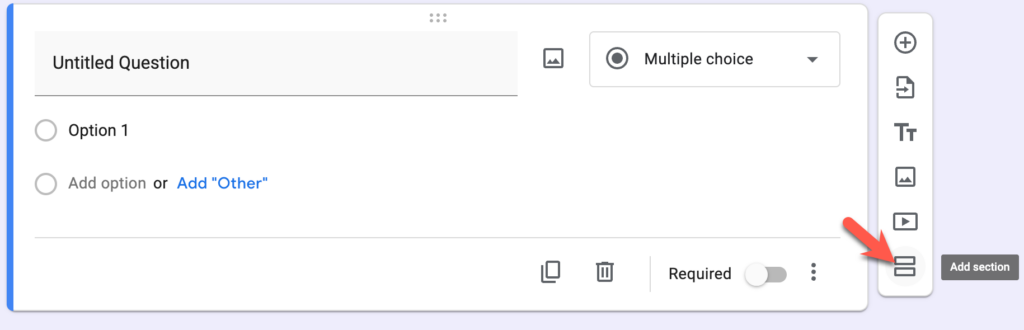
Branching is useful, but it has limits. It works through multiple choice and dropdown questions, and the routing happens between sections rather than individual questions.
4. Response analysis
The Responses tab provides an immediate overview of the collected data. Teachers can view:
- A class summary
- Responses to individual questions
- Each student’s complete submission
- Automatically generated charts
- Results in a connected Google Sheet
For a quick exit ticket, the built-in summary may be enough. For a larger assessment, sending responses to Sheets makes it easier to filter results, calculate averages, identify patterns, and create custom charts.

5. Collaboration and sharing
Teachers can invite colleagues to collaborate on a form. This is useful when a grade-level team is preparing a common assessment or when several teachers are organizing a school event.
Forms can be shared through a link, email, QR code, or embedded webpage. Depending on the school’s settings, teachers may also restrict access, collect verified email addresses, limit students to one submission, or share a form with selected people and Google Groups.

6. Google Classroom integration
A Google Forms quiz can be attached to a Google Classroom assignment. Teachers can import grades from eligible quiz assignments, which reduces the need to copy scores manually.
This combination works particularly well for homework quizzes, unit reviews, baseline assessments, and independent practice.
New AI Features in Google Forms
Google has introduced Gemini features that can help teachers create forms and examine written responses. Availability depends on the Google Workspace or Google AI plan, administrator settings, language, device, and gradual rollout.
Create a form or quiz with Gemini
The “Help me create a form” feature generates a form from a written prompt. Teachers can also ask Gemini to use supporting files from Google Drive, including Docs, Sheets, Slides, and PDFs.
A teacher might enter:
Create a 10-question formative assessment for Grade 7 students on photosynthesis. Include six multiple choice questions, two short-answer questions, and two confidence-rating questions. Use clear, age-appropriate language.
When Gemini generates a quiz, it can add correct answers and point values. Teachers can review the answer key, revise questions, and ask for another version. Google also provides a “Suggest questions” option for adding questions to an existing quiz.
According to Google, the form generator currently works on desktop and cannot create forms with multiple sections. It also does not edit an existing form in place. Teachers should duplicate important forms before experimenting with replacement drafts. Google’s guide to creating forms with Gemini
Summarize open-ended responses
Gemini can summarize answers to open-text questions. This is useful when a teacher receives dozens of reflections, course evaluations, or professional development survey responses.
For example, after asking, “What part of today’s lesson remains unclear?”, a teacher may receive a summary of the difficulties students mentioned most frequently.
Google says summaries are available when a question has between 3 and 200 responses. They are not generated for quiz responses or direct questions such as names and addresses. The summaries are not permanently saved, so teachers need to copy any information they want to retain.
Identify themes in student feedback
Gemini can also group text responses into themes and send the analysis to Google Sheets. The resulting spreadsheet can contain theme counts, percentages, and a pie chart.
This could help a teacher analyze:
- Student concerns about an upcoming exam
- Recurring difficulties in a lesson
- Topics students want to revisit
- Feedback about a class project
- Professional development evaluation responses
Google states that theme generation works best with 8 to 200 responses.
AI summaries are helpful for finding patterns, but they should not replace reading important student comments. Nuance, minority viewpoints, and safeguarding concerns can disappear inside an automated summary.
Practical Ways Teachers Can Use Google Forms
Exit tickets
Create a three-question form:
- What is the most important idea you learned today?
- What remains confusing?
- How confident do you feel about the lesson?
The first two questions provide qualitative feedback, while the confidence scale gives you a quick numerical overview.
Self-grading quizzes
Use multiple choice, checkboxes, and short answers to create a quiz that provides immediate feedback. Add explanations or links to review materials for incorrect answers.
For consequential assessments, review the answer key carefully and check whether spelling variations or equivalent responses could be marked incorrectly.
Diagnostic assessments
Begin a unit with a short quiz covering prerequisite knowledge. Use branching to direct students toward different review materials based on their answers.
The results can help with grouping, lesson planning, and identifying concepts that need whole-class review.
Student reflection
At the end of a project, ask students to describe what they contributed, what they found difficult, how their thinking changed, and what they would do differently.
Open-ended responses provide richer evidence than a simple satisfaction rating.
Peer feedback
Create a structured peer-review form with questions linked to the assignment criteria. Students can comment on clarity, evidence, organization, creativity, or presentation.
Avoid collecting anonymous comments unless there is a clear educational reason and appropriate moderation.
Parent forms and permission requests
Google Forms can collect event registrations, conference preferences, volunteer information, and acknowledgements. However, teachers should confirm whether a digital form meets their school’s requirements for formal consent or legal signatures.
Student choice and lesson planning
A short survey can help students select research topics, books, project formats, discussion questions, or revision areas. The results give teachers usable planning data without requiring a lengthy class discussion.
Google Forms Compared With Other Classroom Tools
| Tool | Best for | Main strength | Main limitation |
|---|---|---|---|
| Google Forms | Quizzes, surveys, exit tickets, data collection | Simple, flexible, and closely integrated with Google Workspace | Limited visual design and interactive activities |
| Microsoft Forms | Schools using Microsoft 365 | Strong integration with Teams and Excel | Less convenient in a Google-based school |
| Kahoot | Live game-based review | High-energy whole-class participation | Less suitable for detailed written feedback |
| Wayground | Gamified quizzes and independent practice | Large activity library and engaging quiz modes | Some advanced features require a paid plan |
| BookWidgets | Interactive assignments and varied exercises | Broad selection of activity templates | More complex and many features are paid |
| SurveyMonkey | Detailed surveys and advanced analysis | Professional survey design and reporting | Free plan is restrictive for classroom use |
Google Forms is the strongest choice when a teacher needs a dependable general-purpose tool. Kahoot and Wayground are more engaging for competitive review, while BookWidgets offers richer interactive exercises. Microsoft Forms is the natural alternative for schools built around Microsoft 365.
Google Forms Limitations
Google Forms is useful, but it is not a complete assessment platform.
Its visual customization is fairly basic. It also lacks the games, live competition, interactive media, and activity templates available in dedicated classroom platforms.
Automatic grading is best suited to objective questions. It cannot reliably evaluate the reasoning, creativity, or quality of a complex written response.
The AI tools have additional restrictions. Access depends on the account, Gemini can produce incorrect questions or answer keys, and generated summaries may overlook important comments. Every AI-created assessment should be checked for accuracy, bias, reading level, and alignment with the learning objective.
File-upload questions also require careful handling because uploaded work is stored in Google Drive and respondents may need to sign in.
Privacy Considerations for Teachers
Use a school-managed Google Workspace account whenever possible. Before collecting student information, check your school or district policies concerning privacy, parental consent, data retention, and third-party services.
Avoid asking for sensitive personal information unless it is necessary and institutionally approved. Review who can access the form, whether email addresses are being collected, where uploaded files are stored, and whether students can view summaries.
When using Gemini, do not include confidential student information in prompts. A safe prompt describes the subject, grade level, and learning objective without identifying individual students.
Is Google Forms Good for Teachers?
Google Forms remains one of the most useful free tools for teachers. It is quick enough for a three-question exit ticket, yet flexible enough for quizzes, surveys, differentiated activities, project submissions, and schoolwide data collection.
Its strongest qualities are simplicity, dependable sharing, automatic organization, and integration with Google Classroom and Sheets. Gemini adds useful shortcuts for drafting quizzes and making sense of written feedback, although the AI features still require teacher judgment.
If your priority is collecting responses and turning them into usable classroom information, Google Forms is an excellent choice. If you need elaborate games, multimedia lessons, or sophisticated question interactions, a specialized platform may serve you better.