Much of teachers’ work happens in Google Docs, Slides, and Sheets. We write lesson plans, prepare presentations, organize resources, and work through assessment data. Claude now has a Google Workspace add-on that brings its AI assistance directly into these files.
You describe what you need in plain language, and Claude can draft, edit, or analyze content in the file you have open. For teachers, this offers several useful possibilities, from rewriting classroom instructions to fixing a spreadsheet formula. The examples below are suggested teaching uses based on the add-on’s advertised capabilities.
What Is Claude for Google Workspace?
Claude for Google Workspace is an add-on developed by Anthropic. It opens in a sidebar beside your document, spreadsheet, or presentation and can make changes directly in that file. You can review the changes and continue editing.
One installation covers all three applications. The add-on is currently in beta and requires a paid Claude plan: Pro, Max, Team, or Enterprise. Your school’s Google Workspace settings also determine whether you can install it.
| Application | What Claude can help with | Suggested teacher uses |
|---|---|---|
| Google Docs | Drafting, rewriting, summarizing, and restructuring text | Lesson plans, classroom instructions, reading supports, rubrics, and family communications |
| Google Slides | Drafting slides, revising content, and applying consistent styling | Lesson presentations, discussion prompts, worked examples, and professional development |
| Google Sheets | Writing formulas, cleaning data, and analyzing information | Assessment summaries, resource trackers, budgets, and survey results |
Using Claude in Google Docs
Claude can turn notes into drafts, rewrite passages for different audiences, reorganize sections, and summarize longer material. These functions could help teachers work through documents they already use regularly.
1. Develop lesson plans from your own notes
Start with the curriculum outcome, learning activities, and evidence you want students to produce. Ask Claude to organize those notes into a usable plan.
Example prompt: “Organize these notes into a 45-minute lesson plan. Include the learning outcome, materials, teaching sequence, and an exit ticket. Flag any missing information.”
2. Make classroom instructions clearer
A task can be appropriate while its instructions are unnecessarily complicated. Claude could help shorten sentences, clarify the sequence, and identify ambiguous wording.
Example prompt: “Rewrite these assignment instructions for Grade 7 students. Use numbered steps, preserve every requirement, and flag anything students might misunderstand.”
3. Prepare reading supports
Use a text you have selected to develop a glossary, guiding questions, or a short overview. Check that the support preserves the ideas students need to encounter.
Example prompt: “Create a glossary of eight important terms from this passage and four questions that help students follow the argument. Use only information in the text.”
4. Draft and examine rubrics
Provide the outcome and assessment criteria yourself. Ask Claude to draft descriptors or check whether the existing language distinguishes levels clearly.
Example prompt: “Review this rubric for vague descriptors. Suggest observable language and explain which criteria overlap.”
5. Revise family communications
Claude could help organize a class update or make an announcement easier to follow.
Example prompt: “Revise this family newsletter for clarity. Keep the warm tone, preserve all dates, and place the actions families need to take near the beginning.”
Using Claude in Google Slides
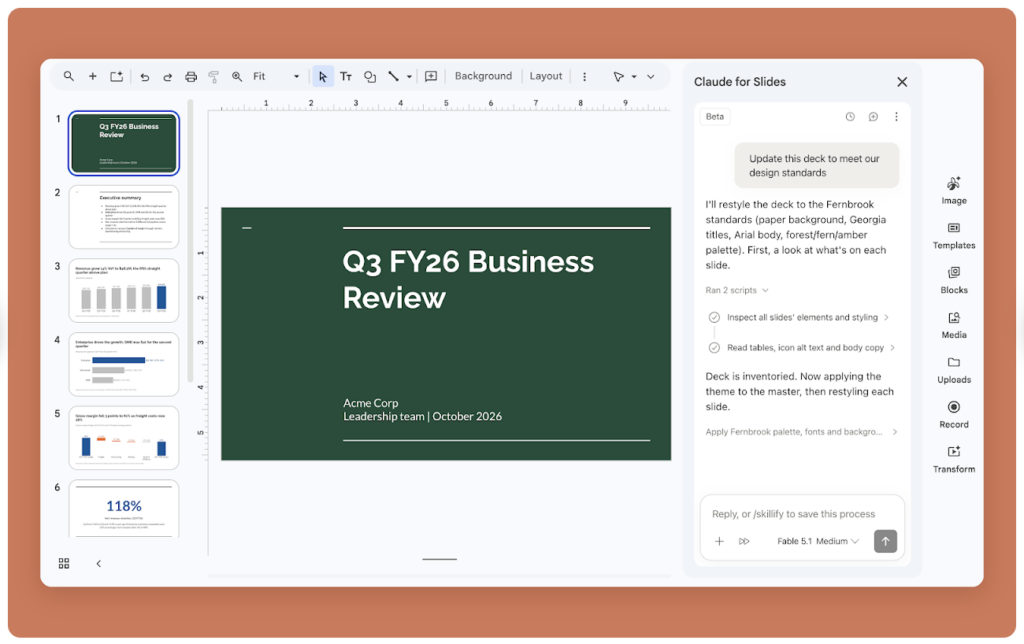
Claude can draft a presentation from an outline, add slides, reduce crowded content, and restyle a deck. Anthropic also says it can use the deck’s existing layouts and themes when building new slides.
1. Turn a lesson outline into a first draft
Give Claude a clear sequence and specify where students should participate.
Example prompt: “Create eight slides from this lesson outline for Grade 8. Include an opening question, three explanation slides, two practice tasks, a discussion prompt, and an exit ticket.”
2. Reduce text-heavy slides
Ask Claude to identify the main point of each slide and shorten the visible text.
Example prompt: “Shorten these slides to one main idea each. Keep essential terminology and identify any explanation that needs a separate slide.”
3. Add checks for understanding
Use the deck’s content to draft questions at useful points in the lesson.
Example prompt: “After each major concept, add a short question that checks understanding. Include a plausible misconception students could discuss.”
4. Develop worked examples
Ask for a sequence that makes a process visible, then inspect the steps yourself.
Example prompt: “Add three slides demonstrating how to compare two historical sources. Use these supplied excerpts and show the reasoning behind each step.”
5. Improve consistency
Claude could help standardize headings, wording, and slide structure across a presentation assembled over several lessons.
Example prompt: “Make the headings and formatting consistent across this deck. Keep the white background and use black text with light blue accents.”
Related: Gemini Gems for Teachers: 8 Templates You Can Adapt
Using Claude in Google Sheets
Claude can write and debug formulas, clean messy data, and produce analyses. Anthropic’s announcement also describes support for pivot tables, native Sheets charts, and additional spreadsheet tabs.
1. Write and explain formulas
Describe what you want to calculate, including how blanks or missing entries should be handled.
Example prompt: “Write a formula that calculates the average of the completed assessments in columns C to G. Ignore blank cells and explain how the formula works.”
2. Troubleshoot errors
Ask Claude to examine a formula and explain the source of the problem.
Example prompt: “This formula returns an error. Identify the cause, suggest a correction, and explain what the corrected formula calculates.”
3. Summarize assessment patterns
With approved, anonymized data, Claude could help organize results by question or learning outcome. Those patterns can inform your next teaching decisions.
Example prompt: “Summarize the percentage of correct responses for each question. Identify the three questions with the lowest success rates. Describe the patterns without making claims about individual students.”
4. Clean resource lists
Teachers often collect links and materials from several sources. Claude could help remove duplicate entries and standardize inconsistent labels.
Example prompt: “Clean this resource list by removing duplicate rows, trimming extra spaces, and standardizing subject labels. Flag entries with missing information.”
5. Build planning and budget trackers
Describe the categories and calculations you need.
Example prompt: “Create a classroom materials budget with columns for item, quantity, unit cost, and total cost. Add an overall total and flag when spending exceeds $300.”
6. Analyze anonymous feedback
Use survey results to examine recurring responses and questions worth following up.
Example prompt: “Summarize these anonymous responses about the lesson. Group recurring themes, include examples from the responses, and distinguish frequent concerns from isolated comments.”
How to Get Started
Install Claude from the Google Workspace Marketplace. Open a Google Doc, Sheet, or Slides presentation, then select Extensions → Claude → Open Claude and sign in with your Claude account. If installation is blocked, your school’s Workspace administrator will need to allow or install the add-on.
Start with a small task in a file you can comfortably experiment with: revise one set of instructions, simplify three slides, or explain a formula. Give Claude the audience, purpose, and constraints, then review what it changes.
For classroom work, check factual claims, curriculum alignment, accessibility, and calculations before using the output. Follow your school’s data rules when working with student information. A useful draft still needs your knowledge of the learners, the subject, and what the lesson is meant to achieve.