In this post, I share three Chrome extensions for experimenting with reading pace and text presentation. Jiffy Reader and Bionify emphasize parts of words on a page. SwiftRead offers paced reading modes and text-to-speech. The comparison table explains what each changes and what to check before using it with an assigned reading.
Choose a tool with the reading task in mind. Previewing a familiar article, comparing two arguments, and studying an unfamiliar explanation call for different levels of attention. After trying a new display, check whether you can explain what you read and find the evidence you need.
Chrome Extensions for Speed Reading Compared
| Tool | What it changes | A useful starting point | What to check |
|---|---|---|---|
| Jiffy Reader | Bolds parts of words, with adjustable formatting | Comparing ordinary and partially bolded text | The current listing has a different extension ID from the old link. Review the developer, permissions, and settings before installing. |
| Bionify | Applies partial-word highlighting to public web pages | Trying a free, open-source formatting option | Its listing excludes locally uploaded content such as PDFs. Check compatibility on your current browser. |
| SwiftRead | Provides paced reading modes, highlighting, and text-to-speech | Adjusting pace or listening while following text | Its current listing describes free access with daily allowances on some features. Test the mode and file you intend to use. |
What Does the Research Say About Speed Reading?
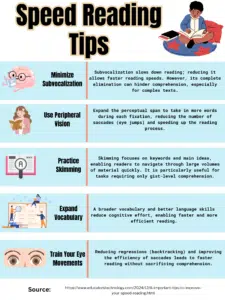
Rayner and colleagues reviewed research on reading processes and speed-reading techniques. They found a trade-off between speed and comprehension. Doubling or tripling reading speed while preserving the same understanding is unlikely.
Skimming can help a reader get an overview when detailed understanding is unnecessary. Their review also explains that returning to earlier words and sentences can support comprehension. Read the research review
I’d use that distinction when introducing these tools. A faster setting gives you a pace to try. To judge whether it helps with schoolwork, look at what the reader can explain afterward.
1. Jiffy Reader for Trying Partial-Word Bolding
Jiffy Reader changes the appearance of text by making parts of words more prominent. Its current Chrome Web Store description lists customizable bolding settings. This gives readers a way to compare two versions of the same page and decide which they prefer.
Start with a short, familiar article. Read a section with ordinary formatting and another with the extension enabled. Ask whether the bolding helps you follow the text or draws attention away from the meaning. Then summarize the main idea and locate a supporting detail.
The original link in this post now leads to an empty listing. The linked listing above uses a different extension ID, so check it as a fresh installation. The description promotes benefits for focus and reading speed. Treat those as developer claims while deciding how the display works for you. Current Jiffy Reader listing
2. Bionify for Formatting Public Web Pages
Bionify is a free, open-source extension that highlights portions of words. Its listing describes use on public websites and states that locally uploaded content, including PDFs, is unsupported. The listed update date is June 2022, so try it on the actual pages you plan to read before building an activity around it.
I’d choose either Bionify or Jiffy Reader for an initial trial because they make similar changes to word appearance. Have students use one short reading and describe what they noticed about the display. Keep the original version available so they can switch back when they want to reread or take notes. Bionify’s listing and source-code link
3. SwiftRead for Paced Reading and Listening
SwiftRead’s current listing includes several reading modes. Focus presents a few words at a time in one place. Flow keeps the page visible while moving a highlight through the text. It also offers text-to-speech with highlighted words. The listing describes support for web pages, PDFs, ebooks, Kindle Cloud Reader, and Libby.
For a passage you need to study, begin at a comfortable pace and pause whenever you need to interpret a sentence. Try the mode that keeps the page visible if you want to look back at earlier details. For a diagram-heavy PDF, check that extracted text follows the intended reading order and refer to the original for figures and captions.
The store listing currently says features are included free, with daily allowances on some. That differs from the older description of PDF and ebook support as PRO features. Check the current allowance before relying on it for a long reading session. SwiftRead on the Chrome Web Store
A Classroom Routine for Trying a Reading Tool
Give students a brief passage and a clear purpose, such as explaining the author’s main claim. Let them choose a comfortable display and pace. After reading, ask them to close the passage and write a two-sentence explanation. Then have them reopen it, check their explanation, and identify one supporting detail.
Use these questions to review the experience.
- Which setting helped you follow the passage?
- Where did you need to pause or reread?
- What did you revise after checking the text?
- Would you choose the same setting for a harder reading?
Repeating the same passage can make it feel easier, so this routine is an informal classroom trial. Use students’ responses to choose settings for their next task.
For students using reading accommodations, start with the supports already agreed for their learning. Offer display choices and ask what they find usable. Claims that an extension helps ADHD or dyslexia need evidence beyond a store description.
If you want to extend the activity into examining the author’s reasoning, my book Critical Thinking with AI includes 81 activities for integrating critical thinking into teaching. Students can move from summarizing a passage to checking its evidence, assumptions, and conclusions.
Reference
Rayner, K., Schotter, E. R., Masson, M. E. J., Potter, M. C., & Treiman, R. (2016). So much to read, so little time: How do we read, and can speed reading help? Psychological Science in the Public Interest, 17(1), 4–34. https://doi.org/10.1177/1529100615623267